
|
|
OurNet.Club - P2P overlay network |
Supperted Windows versions are Windows 2000 - Windows 11.
1. Download Tinc client v.1.0.36 from the official website or from our
2. Run downloaded file (as Administrator) and follow as described on the images below:
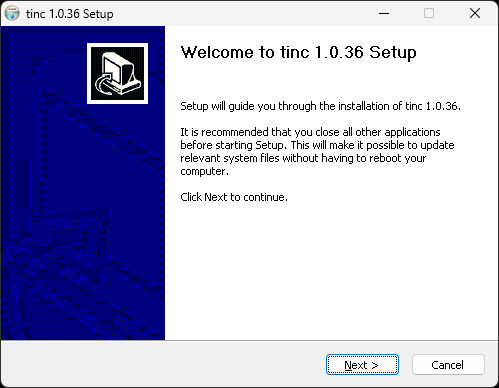
Click "Next"
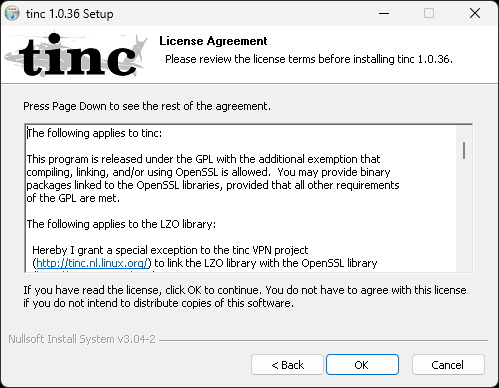
Read the license agreement and click "OK" if agree
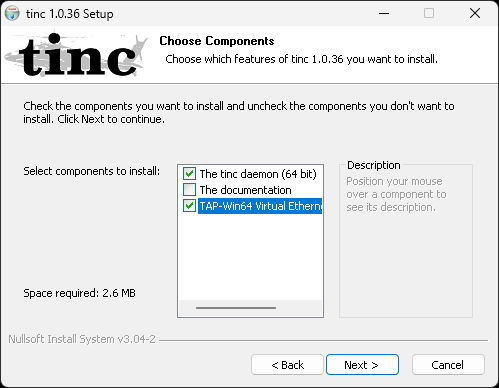
Select the options as on the picture above and click "Next"
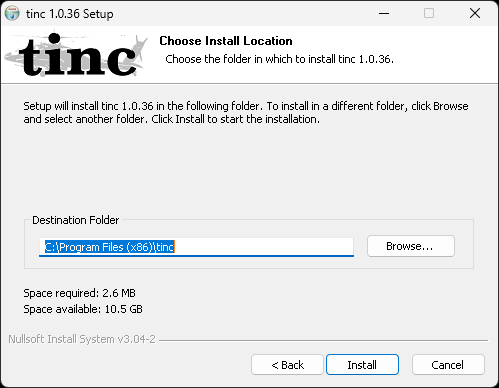
Chose the installation folder. We recommend to leave it as it is. Click "Next"
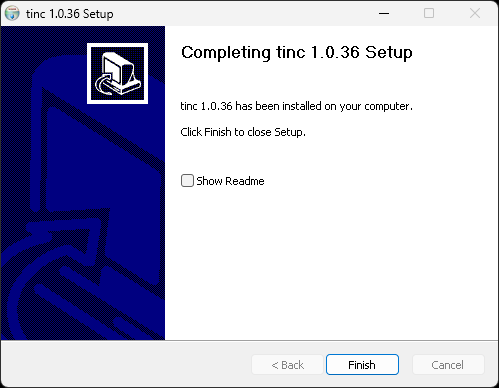
Finish the installation clicking "Finish"
3. Go to the folder you installed Tinc (C:\Program Files (x86)\tinc\tap-win64 (on older/32 bit systems might be tap-win32)
4. Run "addtap.bat" as Administrator
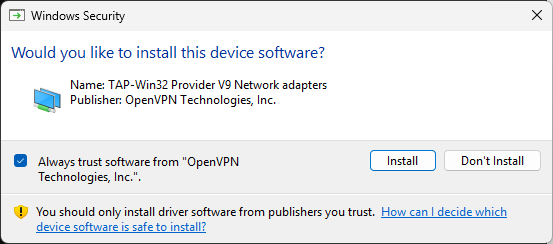
5. Click "Install" on the opened window
If you see the black screen with the text as on the image below, everything is ok
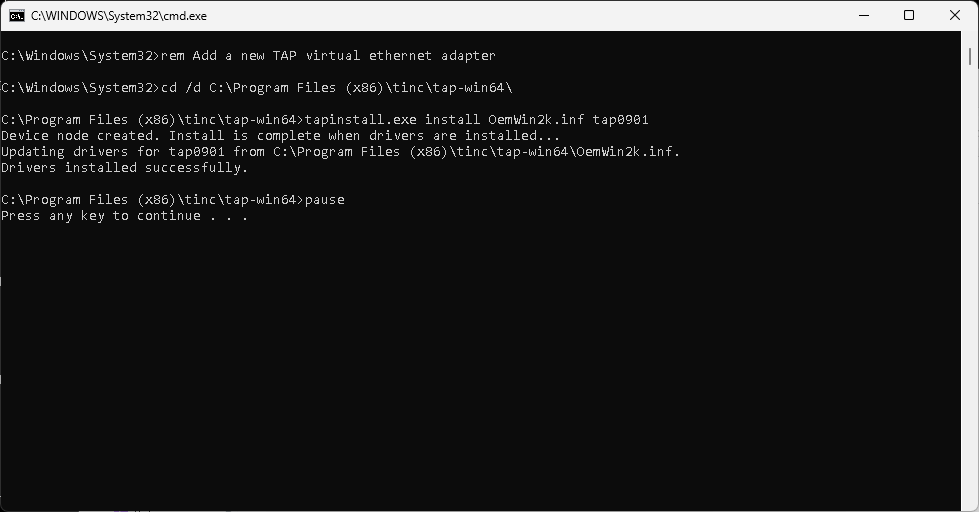
6. Press any key to close this window
7. Press Win+R or right click on "Start" and chose "Run" and type "ncpa.cpl". It will open the Network Connections
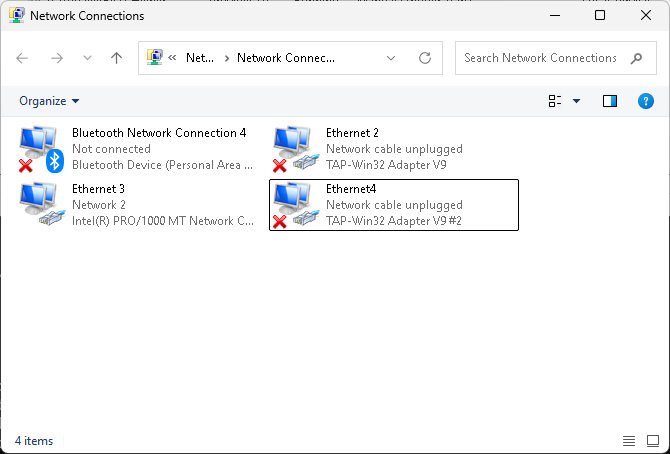
8. Find ethernet adapter "TAP-Win32 Adapter V9" and rename it to tap0
9. Right mouse click on it and chose "Properties"
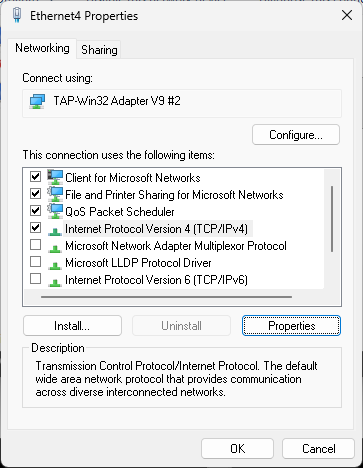
10. Select Internet Protocol Version 4 (TCP/IP) and click button "Properties" on this window below
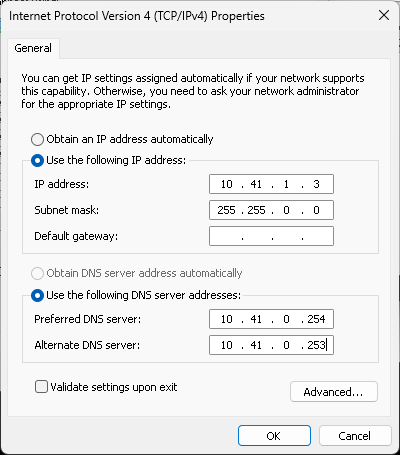
11. Click radiobutton "Use the following settings" and type the IP address from the Dashboard of your OurNet account, netmask 255.255.0.0 and DNS servers 10.41.0.254 and 10.41.0.253
Click OK two times.
12. Go to the OurNet Dashboard and download your PRIVATE (rsa_key.priv) key and server PUBLIC keys (server_01, server_02, server_03) and copy from the box or download your configuration file (tinc.conf)
12. Run the command line as Administrator (Press Win+R and type "cmd" on the old systems or right click on "Start" menu and select "Terminal (Admin)")
13. In the command line do the following:
cd C:\Program Files (x86)\tinc\or on older 32 bit Windows:
cd C:\Program Files\tinc\then type
mkdir ournet
mkdir ournet\hosts
14. Put private key (rsa_key.priv) to the C:\Program Files (x86)\tinc\ournet\rsa_key.priv and server keys (server_01, server_02, server_03) to C:\Program Files (x86)\tinc\ournet\hosts\ and put the configuration file (tinc.conf) to C:\Program Files (x86)\tinc\ournet\tinc.conf
In the command line as in p.12 run the following:
tincd.exe -n ournetor on most modern Windows
.\tincd.exe -n ournet
If you just see the following:
tinc.ournet service installed
tinc.ournet service started
you have installed tinc as the service in your system and able to manage it there. A bit later will be described how to manage.
If appearing the window "Do you want to allow public network to access this app?", click "Allow". If not possible (button "Allow) is disabled, do the following in the command line as Administrator:
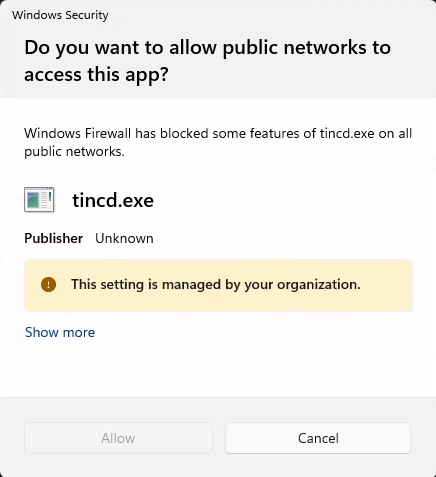
netsh advfirewall firewall add rule name="Tinc" dir=in action=allow program="C:\Program Files (x86)\tinc\tincd.exe" enable=yes
netsh advfirewall firewall add rule name="Tinc" dir=out action=allow program="C:\Program Files (x86)\tinc\tincd.exe" enable=yes
This will add the rule to the Firewall to allow the Tinc network traffic.
Tinc works as a service in Windows Systems, you can manage it by running Win+R and type "services.msc", there will be a service called tinc.ournet:
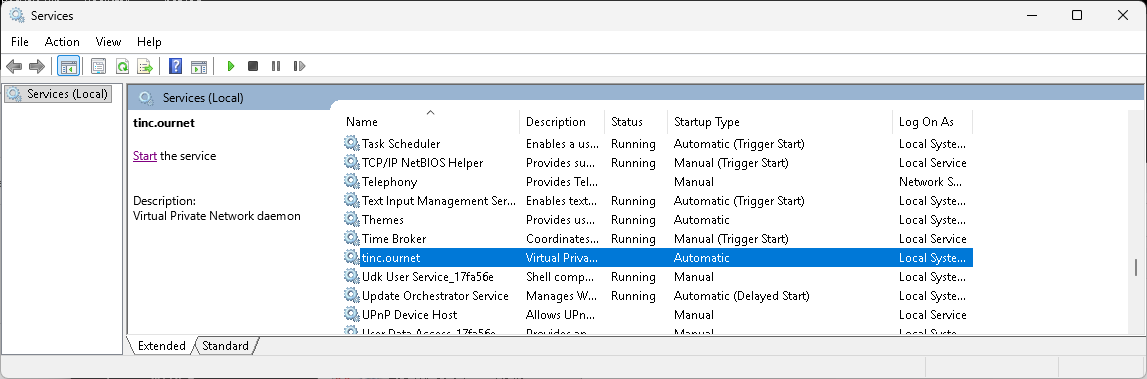
Click "Start" on the service tinc.ournet to get connected to OurNet. Make sure it is in a running state by refreshing the services window (push F5 on the keyboard).
|
GDPR & Cookies Policy: |
Abuse Policy |
